MediaManager and MediaPlayer
MediaPlayer is a peer component, understanding this is crucial if your application depends on such a component. You can learn about peer components and their issues here.The MediaPlayer allows you to control video playback. To use the MediaPlayer you need to first load the Media object from the MediaManager.
The MediaManager is the core class responsible for media interaction in Codename One.
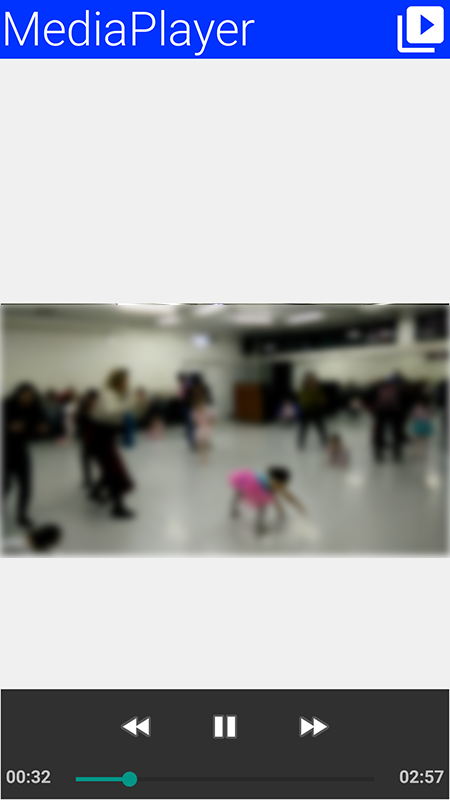
MediaManager.In the demo code below you use the gallery functionality to pick a video from the device’s video gallery:
final Form hi = new Form("MediaPlayer", new BorderLayout());
hi.setToolbar(new Toolbar());
Style s = UIManager.getInstance().getComponentStyle("Title");
FontImage icon = FontImage.createMaterial(FontImage.MATERIAL_VIDEO_LIBRARY, s);
hi.getToolbar().addCommandToRightBar("", icon, (evt) -> {
    Display.getInstance().openGallery((e) -> {
        if(e != null && e.getSource() != null) {
            String file = (String)e.getSource();
            try {
                Media video = MediaManager.createMedia(file, true);
                hi.removeAll();
                hi.add(BorderLayout.CENTER, new MediaPlayer(video));
                hi.revalidate();
            } catch(IOException err) {
                Log.e(err);
            }
        }
    }, Display.GALLERY_VIDEO);
});
hi.show();
PCM Audio Buffers, Mixing, and Effects
AudioBuffer stores raw interleaved float PCM samples in the [-1, 1] range, and WAVWriter writes those samples to a WAV file.
The portable live PCM source in Codename One is microphone capture: create an AudioBuffer with MediaManager.getAudioBuffer(…), then create a recorder with MediaRecorderBuilder.redirectToAudioBuffer(true). The builder’s path value is the buffer key in this mode; it isn’t a file path.
String bufferKey = "voice-buffer";
AudioBuffer livePcm = MediaManager.getAudioBuffer(bufferKey, true, 8192);
livePcm.addCallback(buffer -> {
    float[] frame = new float[buffer.getSize()];
    buffer.copyTo(frame);
    // Process or copy this frame before the next callback arrives.
});

Media recorder = MediaManager.createMediaRecorder(
        new MediaRecorderBuilder()
                .path(bufferKey)
                .samplingRate(44100)
                .audioChannels(1)
                .redirectToAudioBuffer(true));
recorder.play();

// Later:
recorder.cleanup();
MediaManager.releaseAudioBuffer(bufferKey);
When the VideoIO API is available, it can also produce PCM from a prerecorded video file. VideoIO.getVideoIO().openReader(path).readAudio() returns the decoded audio track as an AudioBuffer, so video audio can be mixed or processed with the same APIs shown below. VideoIO support is platform-gated with VideoIO.isSupported(), and JavaScript currently reports no decoded audio track even though frame decoding and encoding are supported.
Codename One still doesn’t expose a standalone portable decoder that converts an arbitrary prerecorded audio-only file, such as MP3 or AAC, into an AudioBuffer without going through a video container API. Use the normal Media APIs to play those files. If you need offline PCM editing for audio-only formats, decode them before passing samples to Codename One, or add a platform decoder API for that format.
When you need to combine PCM clips before writing or playing them, use AudioMixer. It creates a sample-accurate timeline on one sample clock. Each track must use the same sample rate and channel count as the mixer. Track offsets are supplied in milliseconds and are rounded to the nearest sample frame on the mixer clock; if you already know the exact frame position, use addTrackAtFrame(…).
The mixed buffer is clipped to the normalized PCM range [-1, 1], so it can be passed directly to WAVWriter. The mixer doesn’t resample or convert channel layouts; downsample or otherwise convert source buffers before adding them if they’re not already on the target clock.
AudioEffects provides small platform-neutral PCM transforms that compose with the mixer:
AudioBuffer voice = AudioEffects.normalize(livePcm, 0.9f);
AudioBuffer brighter = AudioEffects.equalize(voice,
        0.8f,  // low band gain
        1.0f,  // mid band gain
        1.25f  // high band gain
);

AudioBuffer karaoke = AudioEffects.removeCenter(stereoMusic);
AudioBuffer centeredSpeech = AudioEffects.isolateCenter(stereoInterview);
AudioBuffer voiceEnhanced = AudioEffects.midSide(stereoInterview, 1.4f, 0.6f);equalize(…) is a simple three-band tone shaper for lightweight cleanup and demos. removeCenter(…), isolateCenter(…), and midSide(…) use classic stereo mid/side processing. They can reduce, isolate, or enhance centered dialog only when the source is stereo and the voice is actually centered. These methods aren’t source-separation, speech-isolation, or noise-reduction APIs.
AudioMixer and the simple buffer-wide AudioEffects operations use the com.codename1.util.Simd float-array API internally when the current platform supports it. Stateful filters, such as the equalizer, stay scalar because each sample depends on the previous filter state. You can force scalar behavior for diagnostics with AudioMixer.setSimdOptimizationsEnabled(false) or AudioEffects.setSimdOptimizationsEnabled(false).
The Audio Graph
The com.codename1.media.audio package is a real-time and offline audio graph modelled on the W3C Web Audio API. Sources feed processing nodes that end at the context’s destination, and every node parameter is an AudioParam with sample-accurate automation. The node set and its behavior follow the specification, so Web Audio articles and tutorials apply with Java naming: gain.gain.value = 0.5 becomes gain.getGain().setValue(0.5f).
The graph is rendered by portable code on every platform, and each port only supplies an output that plays the rendered samples. A graph therefore sounds the same everywhere it runs, and an OfflineAudioContext that renders to memory produces the same samples on a device as in a unit test.
Playing Sound in Real Time
AudioContext.create() opens the speaker and answers null on a platform with no real-time output, so check for null, or ask AudioContext.isSupported() first. The simulator, Android, iOS, macOS, Windows, Linux and the browser have one. The example below plays a filtered beep with an attack and a decay:
AudioContext audio = AudioContext.create();
if (audio != null) { // null where the platform has no real-time output
    OscillatorNode osc = audio.createOscillator();
    osc.getFrequency().setValue(440);
    GainNode env = audio.createGain();
    double now = audio.getCurrentTime();
    env.getGain().setValueAtTime(0, now);
    env.getGain().linearRampToValueAtTime(0.5f, now + 0.02);
    env.getGain().exponentialRampToValueAtTime(0.001f, now + 1);
    BiquadFilterNode filter = audio.createBiquadFilter();
    filter.setType(BiquadFilterType.LOWPASS);
    filter.getFrequency().setValue(1200);
    osc.connect(filter).connect(env).connect(audio.getDestination());
    osc.start(now);
    osc.stop(now + 1);
}
The nodes available are:
Sources:
AudioBufferSourceNode(with loop points, playback rate and detune),OscillatorNodewith the standard waves and customPeriodicWaveshapes,ConstantSourceNodeandMicrophoneSourceNode.Processing:
GainNode,DelayNode,BiquadFilterNode(all eight filter types, withgetFrequencyResponse),IIRFilterNode,WaveShaperNodewith oversampling,DynamicsCompressorNode,ConvolverNodefor reverb,StereoPannerNode,ChannelSplitterNodeandChannelMergerNode.Spatial:
PannerNodeand the context’sAudioListener.Analysis:
AnalyserNode.Custom:
AudioProcessorNode, which runs your own Java code.
Spatial Sound
A PannerNode places a source in 3D around the context’s AudioListener, with the specification’s linear, inverse and exponential distance models and sound cones. PanningModel.EQUALPOWER pans between the speakers; PanningModel.HRTF renders binaurally for headphones, so a sound can come from behind or above the listener:
AudioContext audio = AudioContext.create();
if (audio != null) {
    PannerNode panner = audio.createPanner();
    panner.setPanningModel(PanningModel.HRTF);
    panner.getPositionX().setValue(3);
    panner.getPositionZ().setValue(-1);
    audio.getListener().getPositionX().setValue(0);
    OscillatorNode tone = audio.createOscillator();
    tone.connect(panner).connect(audio.getDestination());
    tone.start();
    tone.stop(audio.getCurrentTime() + 2);
}
The HRTF mode uses a structural model of the head (the delay between the ears, the shadow of the head and the echoes of the outer ear) rather than a measured data set. It runs the same portable code on every platform, so isHrtfSupported() is always true.
Analysis and Visualization
An AnalyserNode passes its input through unchanged and exposes its spectrum and waveform for a visualizer or a level meter. Read it from the EDT, for example in an animation callback:
OfflineAudioContext audio = new OfflineAudioContext(1, 4096, 44100);
OscillatorNode osc = audio.createOscillator();
AnalyserNode analyser = audio.createAnalyser();
osc.connect(analyser).connect(audio.getDestination());
osc.start();
audio.startRendering();
float[] spectrum = new float[analyser.getFrequencyBinCount()];
analyser.getFloatFrequencyData(spectrum);
float loudest = -1000;
for (float db : spectrum) {
    loudest = Math.max(loudest, db);
}
Custom Processing
createAudioProcessor is the counterpart of the Web Audio AudioWorkletNode. The AudioProcessor you pass is called once per block of 128 frames on the audio thread, with the same inputs[input][channel][frame] layout a worklet gets. Declare parameters with AudioParamDescriptor to automate them like any other AudioParam. The code runs on the audio thread, so it must not block, wait for the EDT or allocate memory on every call:
OfflineAudioContext audio = new OfflineAudioContext(2, 44100, 44100);
AudioProcessorNode crusher = audio.createAudioProcessor(new AudioProcessor() {
    @Override
    public boolean process(float[][][] in, float[][][] out, float[][] params) {
        for (int c = 0; c < out[0].length && c < in[0].length; c++) {
            for (int i = 0; i < 128; i++) {
                out[0][c][i] = (float) Math.floor(in[0][c][i] * 8 + 0.5) / 8f;
            }
        }
        return true;
    }
}, 2);
A processor that throws is stopped and outputs silence, and the handler set with setOnProcessorError runs on the EDT.
Microphone Input
createMicrophoneSource plays the AudioBuffer a recorder fills when it’s built with redirectToAudioBuffer(true) (see PCM Audio Buffers, Mixing, and Effects), resampled to the context’s rate. isMicrophoneSourceSupported() answers whether the platform implements that capture; it’s false on the native Windows and Linux ports, whose recorders always write a file:
AudioContext audio = AudioContext.create();
if (audio != null && audio.isMicrophoneSourceSupported()) {
    AudioBuffer capture = MediaManager.getAudioBuffer("mic", true, 4096);
    MicrophoneSourceNode mic = audio.createMicrophoneSource(capture);
    AnalyserNode meter = audio.createAnalyser();
    mic.connect(meter);
    // start a recorder built with redirectToAudioBuffer(true) and path "mic"
}
Offline Rendering and Decoding
An OfflineAudioContext renders a graph to memory as fast as the device can, for export, for tests, or to bake an effect into a clip. decodeAudioData reads WAV files whose samples are integers of 8 to 32 bits or floats of 32 or 64 bits, and returns null for any other format. Decode compressed audio before it reaches the graph, or play it with Media:
byte[] wav = new byte[0]; // the bytes of a .wav file, from storage or a resource
AudioData rendered = null;
OfflineAudioContext offline = new OfflineAudioContext(2, 48000 * 5, 48000);
AudioData clip = offline.decodeAudioData(wav); // null if not a WAV file
if (clip != null) {
    AudioBufferSourceNode src = offline.createBufferSource();
    src.setBuffer(clip);
    ConvolverNode reverb = offline.createConvolver();
    reverb.setBuffer(clip);
    src.connect(reverb).connect(offline.getDestination());
    src.start();
    rendered = offline.startRendering();
}
Platform Notes
AudioContext.getOutputLatency()reports the delay of the platform’s output, so a game can schedule sounds against what the player hears.On Android the output is 16-bit PCM.
In the browser, the graph is rendered in Java and played through the browser’s own audio context. Like any web audio, it starts after the first tap or key press on the page.