The two kinds of software people least expect to write in Java are the app that owns a panel PC in a shop and the tool you type into a terminal. Both used to be bad fits for the same reason: a JVM to install, seconds of startup, and a runtime that doesn’t own the machine. Codename One compiles your Java ahead of time to C and then to one native executable, so both problems go away. This week that covers locked down Windows kiosks and command line tools.
Two weeks ago we added embedded Linux. Plenty of devices in shops, factories and lobbies run Windows on a panel PC instead, because that’s what the hardware vendor shipped and what IT knows how to manage.
Kiosks on Windows IoT Enterprise
A kiosk is an app that owns the device. The customer at a self-checkout shouldn’t be able to reach the desktop, open a browser or press Alt+F4. On Windows, getting there usually means a native app plus a day of fighting Shell Launcher and Group Policy.
One build hint turns your app into one:
codename1.arg.windows.embedded=true
codename1.arg.windows.embedded.board=imx8
codename1.arg.windows.embedded.rotation=90
The result is the same native .exe the native Windows port builds, with no JVM, configured for a device:
- A frameless window that covers the monitor and stays on top.
- The Windows key, Alt+Tab, Alt+F4 and Ctrl+Esc are blocked.
- Codename One’s own on-screen keyboard instead of the Windows one, so it matches your UI.
- Rotation, density, the target monitor and the cursor set by build hints or environment variables, so one build serves a portrait totem and a landscape counter.
Board profiles cover generic x64 with or without a mouse, generic arm64, i.MX 8 and Qualcomm IoT boards. Windows 10 and 11 IoT Enterprise are supported. Windows 10 IoT Core isn’t.
Deploy over SSH
mvn cn1:deploy-device -Dcn1.device.host=kiosk.local -Dcn1.device.user=Administrator \
    -Dcn1.device.kioskUser=kiosk -Dcn1.device.keyboardFilter=true
That copies the app to the device, configures Shell Launcher so the app replaces the desktop for the kiosk user, and with keyboardFilter=true also blocks Ctrl+Alt+Del. If the app crashes, Shell Launcher restarts it. mvn cn1:device-logs follows the log from your machine.
mvn cn1:deploy-device] -->|SSH| K[Panel PC
Windows IoT Enterprise] K --> SL[Shell Launcher
app replaces the desktop] SL --> A[Your app
full screen, keys blocked] A -->|crash| SL A --> H[Serial, GPIO, backlight] A -->|REST, shared DTOs| B[Your backend]
Talking to the hardware
The same com.codename1.hardware API from the Linux port works on Windows. Every COM port is available, which covers most receipt printers, scales and card readers:
Hardware hw = Hardware.getInstance();
SerialPort printer = hw.openSerial("COM3", 9600, 8, SerialPort.PARITY_NONE, 1);
byte[] receipt = "Thank you!\n".getBytes("UTF-8");
printer.write(receipt, 0, receipt.length);

hw.setBacklightBrightness(hw.getMaxBacklightBrightness() / 2);   // night mode
GPIO, I2C, SPI and PWM go through the Windows.Devices APIs, which need a board whose vendor ships the bus drivers. IoT boards do. Most x64 panel PCs don’t, and on those the API reports that the feature isn’t available rather than failing at run time. The backlight works over DDC/CI or WMI. CAN and a hardware watchdog aren’t available, because Windows has no standard interface for either.
The app on the kiosk shares its entity classes with your backend and your phone app, which is the point of building all of them from one project.
Command line tools with real terminal UIs
Most internal tooling is a command line tool: deploy scripts, data migrations, admin utilities. Java has always been an awkward fit for those because of JVM startup and because you need to ship a JVM. Codename One’s backend now builds a CLI as one native executable with nothing to install beside it.
The command line is declared with annotations in the picocli style, and bound at build time with no reflection:
@Command(name = "deploy", description = "Deploys a service.",
        mixinStandardHelpOptions = true)
public class Deploy implements Callable<Integer> {
    @Option(names = {"-s", "--service"}, description = "Service to deploy")
    String service = "api";

    @Override
    public Integer call() throws Exception {
        // ...
        return 0;
    }
}
The new console API draws the output:
Console.print(new Table("Service", "Status", "Replicas")
        .align(2, Table.Align.RIGHT)
        .addRow("api", Console.style("running", Console.Style.GREEN), 3)
        .addRow("worker", Console.style("degraded", Console.Style.YELLOW), 2)
        .render());

try (ProgressBar bar = new ProgressBar("upload", 40).unit("files")) {
    for (int i = 0; i < 40; i++) {
        upload(i);
        bar.step();
    }
}

Spinner spinner = Spinner.start("waiting for health checks");
waitForHealthy();
spinner.succeed("healthy");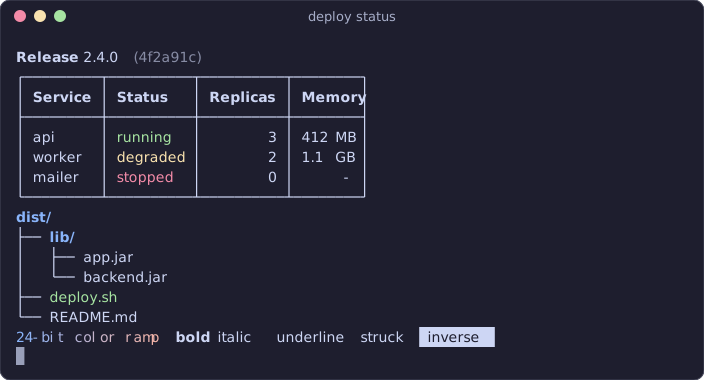
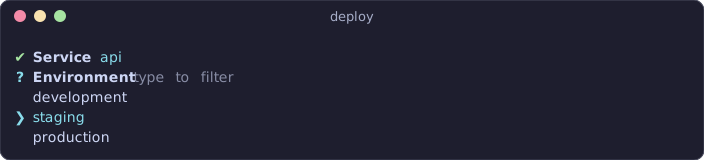
Interactive prompts handle the questions a deployment tool asks:
String env = Prompt.select("Environment", Arrays.asList("staging", "production"));
List<String> regions = Prompt.multiSelect("Regions", Arrays.asList("us-east", "eu-west"));
if (!Prompt.confirm("Deploy to " + env + "?", false)) {
    return 1;
}

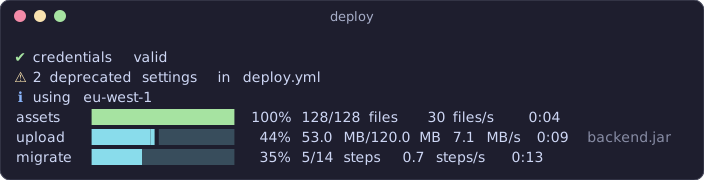
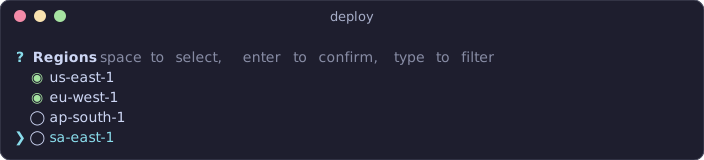
There’s also a Tree, MultiProgress for parallel work, LiveRegion for output that redraws in place, password and number prompts, and raw key reading. Console knows the terminal’s width, whether output is a terminal at all, and how many colors it supports, and it honors NO_COLOR and CLICOLOR_FORCE. Pipe the tool into a file and the colors and spinners step aside by themselves.
It isn’t a windowing toolkit with panes. It’s the set of pieces that make up nearly every CLI people like to use.
Build the executable with ./mvnw cn1:backend-package. It compiles to C and then to a native binary for the host machine, which can be Linux or macOS. During development it runs on the JVM like any other backend code, and the Initializr has a “Command-line tool” project type for Maven and Gradle.
Learn more
The embedded Windows chapter covers board profiles, deployment options and hardware access. The command line chapter covers commands, options, the console API and packaging. If you’re running kiosks on Windows today, I’d like to know what you’re using to build them.